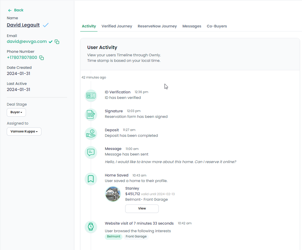
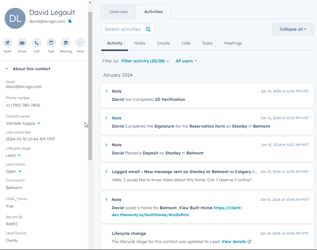
HubSpot Integration
Connection
Have the Company Admin Login to Ownly.
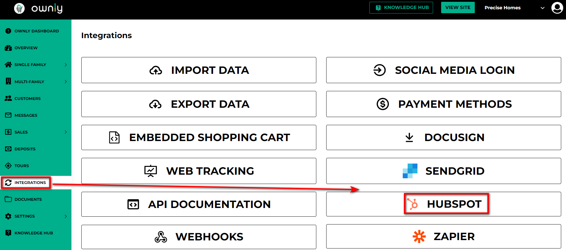
Go to Integrations → HubSpot
Now, have the Company Admin Login using their HubSpot account
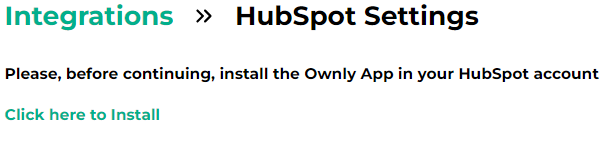
The Ownly App on HubSpot will be connected successfully.
Field Mapping
Field Mapping is to confirm the information set by Ownly are mapped properly to the intended fields in HubSpot.
In order to obtain the field name in HubSpot, Login to HubSpot and Go to Settings → Properties → Contact Properties
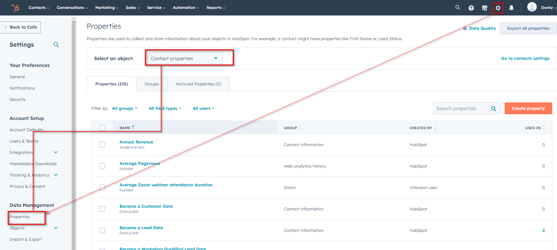
Search for the field if already exists, and if not you can Create Property
Select the field and grab the internal name of the property by following the steps as shown below.
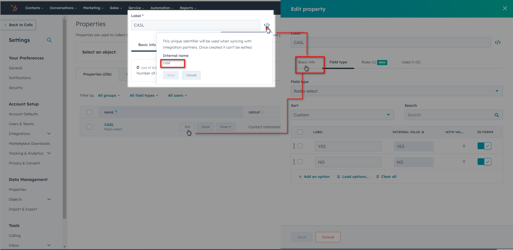
Copy the internal field in Step 4 and populate in the Ownly - Admin.
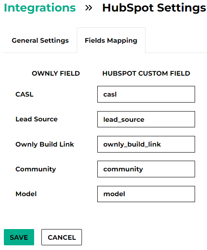
Repeat this process for all the fields available to map in Ownly.
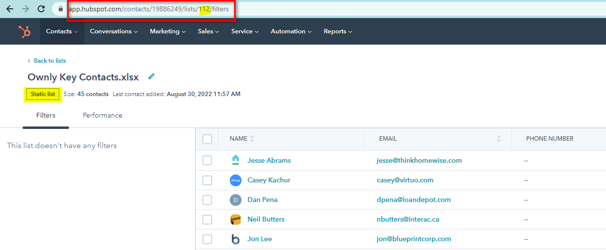
Once this is done, please confirm the contact list ID and the Lead Status from the client. You can obtain the Contact List ID from the URL. Please note that it has to be a Static list.
Testing and Validation
Save a Home or begin a reservation with a test contact.
Once saved, ask the customer to check if the contact and the fields listed have been populated as expected.
Data points to check for
- CASL (US equivalent: CAN-SPAM)
- Lead Source
- Ownly Build Link
- Community
- Model
If the contact did not sync to HubSpot, please check the following.
- Are all the fields populated properly?
- Is there any field value that we are setting not defined in HubSpot?
- Are there any field validations in HubSpot? (Please note that the fields selected for Ownly Data population need to be free from validation)